How to secure your WIRELESS network:
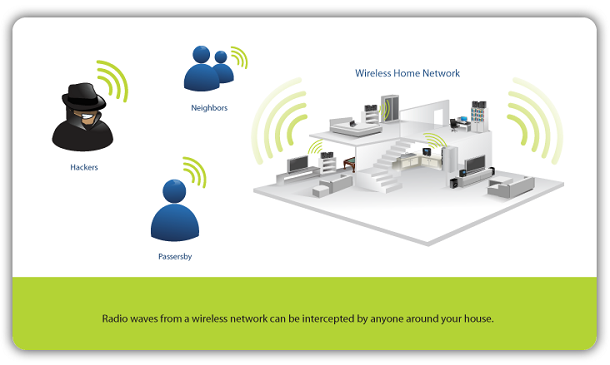
To begin with, open your
browser and type http://192.168.1.1/
or http://192.168.2.1
and a login window will appear where you are asked to insert a username and a
password.
By “factory-default” the username and password is usually set to admin: admin
Have the username and/or password changed IMMIDIATELY. Do this by clicking “System Tools”, followed by “Password”.
It has long been known that WEP is pretty easy to crack. In December 2011 it was discovered that the "WI-FI Protected Setup", better known as WPS, could easily be cracked too by a brute force attack and that certain tools such as Reaver (that could run the attack) were already available for download on the Internet. It was also discovered that most routers did not really disable WPS when given the command to do so. Until a solution to this problem is implemented in new routers by default, what can you do to minimize the risks? Since WPS isn't needed for anything other than the initial router-setup, you should DISABLE WPS after you have set the router up, then test if the WPS really is turned off by running a PIN session. You can do this by going into your wireless client and deleting the profile for your network. Then scan for networks and try to join your network again. If you get an "enter your password" prompt, WPS is truly off. If you get the "setup your network automatically" prompt and are also prompted to enter a PIN, or are prompted to push the button on your router, WPS is NOT disabled.
If your router has a "QSS" function, please generate a new random QSS PIN number and hit "reboot router". Your router (and thus Internet connection) will restart. Go back to QSS and choose to have QSS DISABLED.
With that said, let's contine with the rest of the security setup. Click “Wireless” and choose “Wireless settings”. Check “Enable Wireless Router Radio” and uncheck both “Enable SSID Broadcast” as well as “Enable WDS”.
Change your SSID to “?” or “-“ or something similar that will not identify YOU (e.g. don’t choose an SSID saying John Smith if that is indeed your real name). Or better, disable SSID broadcasting entirely, or do both, just to make sure.
Under Wireless Security, make sure you choose WPA-PSK/WPA2-PSK and when you do so, choose “Version WPA2-PSK”. Please make sure you choose “Encryption AES”, and not TKIP, then visit http://www.kurtm.net/wpa-pskgen/ where you can generate a totally random 63 character PSK password, which are the maximum characters allowed. You do NOT need to remember this password.
Having done this, your password should now look something like EEJ_/CBj!!F'6De'`i7+i'v%TLjpL!QtXziJj"AR+(3Ar{H)i+a0q@dcv@ayt!q. Try and change this password every so often, it won’t take you more than a minute but ensures maximum protection from outsiders possibly trying to hack into your router.

Under DHCP and DHCP Clients
List you can always see who is online at your network. Please check this
frequently so that you can spot possible intruders, as an additional security
measure, should your firewall not detect the intruder.
Under “Security” and “Basic
Security”, all fields should be checked, meaning Firewall, VPN and ALG
should all be enabled.
Under “Advanced Security”, please enable “ICMP-Flood attacking”,” UDP-Flood attacking” and “TCP-SYN-Flood attacking”.
If your router or laptop offers the option to "auto-connect" to open WI-FI networks, please disable this option. Then enable
“Ignore Ping Packet from WAN port” and “Forbid Ping Packet from LAN Port”.
Under Security>Remote Management change
the default “Web Management Port” (usually 80 but sometimes 8080) to any random
number between 10000 and 60000, example given 34111. This is very important that you do.
Now type http://192.168.1.1:34111
or http://192.168.2.1:34111 whenever you want to access your
router for administrative purposes, where the numbers after the colon: stands
for the port number you just chose. 34111 is of course just an example. Try and change the “remote
management” port number every now and then. Also try and unplug your router when
you go to bed or when you are not at home. Turning off your computer
might keep the computer safe, but unless you turn off the router while not
using your computer, the network itself might still be vulnerable.
How to crack WPA WI-FI passwords?
As previously mentioned , it was discovered in 2011 that the "WI-FI Protected Setup", better known as WPS, could easily be cracked by a brute force attack and that certain tools such as Reaver (that could run the attack) were already available for download on the Internet. It was also discovered that most routers
did not really disable WPS when given the command to do so.
So how can you test your WPA password and just how easy/difficult it is to crack? Before anything, there are a few things that you will need.
1) A "BackTrack 5 Live" DVD.
BackTrack is a bootable Linux distribution that's filled with network testing
tools. You can download the Live DVD from BackTrack's download page
and burn it to a DVD. Select BackTrack 5 R1 from the Release drop-down, select
Gnome, 32- or 64-bit depending on your CPU, ISO for image, and then download
the ISO.
2) A computer with WI-FI and a DVD drive.
3) A nearby WPA-secured WI-FI network. Technically, it will need to be a
network using WPA security with the WPS feature enabled.
4) Patience. While it's easy to crack a WPA password with Reaver, it's
nevertheless a brute force attack which means your computer will be
testing a number of different combinations of cracks on your router before it
finds the right one. This will take anywhere between 1-10 hours.
Before we get truly started you should at this point have BackTrack burned to a
DVD, and you should have your laptop handy.
Step 1: Boot into BackTrack
To boot into BackTrack, just put the DVD in your drive and boot your machine
from the disc. During the boot process, BackTrack will prompt you to to choose
the boot mode. Select "BackTrack Text - Default Boot Text Mode" and
press Enter.
Eventually BackTrack will boot to a command line prompt. When you've reached
the prompt, type "startx" and press Enter. BackTrack will boot into
its graphical interface.
Step 2: Install Reaver
Reaver has been added to the bleeding edge version of BackTrack, but it's not
yet 100 % incorporated with the live DVD, so you need to install Reaver before
proceeding. (Soon, however, Reaver will be incorporated with BackTrack by
default.)
To install Reaver, you'll first need to connect to a WI-FI network that you
have the password to.
Click Applications > Internet > Wicd Network Manager
Select your network and click Connect, enter your password if necessary, click
OK, and then click Connect a second time.
Now that you're online, it's time to install Reaver. Click the Terminal button
in the menu bar (or click Applications > Accessories > Terminal). At the
prompt, simply type: "apt-get update" and then, after the update
completes type "apt-get install reaver"
Reaver should now be installed. It may seem somewhat
"lame" at first that you need to connect to a network to do this, but
it will remain installed until you reboot your computer. At this point, go
ahead and disconnect from the network by opening the Wicd Network Manager again
and clicking Disconnect.
Step 3: Gather Your Device Information, Prep Your Cracking
In order to use Reaver, you need to get your wireless card's interface name,
the BSSID of the router you're attempting to crack (the BSSID is a unique
series of letters and numbers that identifies a router), and you need to make
sure that your wireless card is in monitor mode.
How to do all this?
Find your wireless card: Inside Terminal, type: "iwconfig". You
should see a wireless device in the subsequent list. Most likely, it'll be
named wlan0, but if you have more than one wireless card, or a more unusual
networking setup, it may be named something different.
Put your wireless card into monitor mode: Assuming your wireless card's
interface name is wlan0, execute the following command to put your wireless
card into monitor mode: "airmon-ng start wlan0"
This command will output the name of monitor mode interface, which you'll also
want to make note of. Most likely, it'll be mon0. Please make note of that.
Lastly, you need to get the unique identifier of the router you're attempting
to crack so that you can point Reaver in the right direction. To do this,
execute the following command: "airodump-ng wlan0".
You'll see a list of the wireless networks in range. When you see the network
you want, press Ctrl+C to stop the list from refreshing, then copy that
network's BSSID (it's the series of letters, numbers, and colons on the far
left). The network should have WPA or WPA2 listed under the ENC column.
Now, with the BSSID and monitor interface name in hand, you've got everything
you need to start up Reaver.
Step 4: Crack a Network's WPA Password with Reaver
Now execute the following command in the Terminal, replacing bssid and
moninterface with the BSSID and monitor interface: "reaver -i moninterface -b bssid -vv"
For example, if your monitor interface was mon0, and your BSSID was
8D:AE:9D:65:1F:B2 (or whatever), your command would look like: "reaver -i mon0 -b 8D:AE:9D:65:1F:B2 -vv"
Press Enter and let Reaver do the dirty job for you.
Reaver will try a series of PINs on the router in a brute force attack, one
after another. As mentioned above it can take anywhere between 1 and 10 hours. You may pause your progress at any time by pressing Ctrl+C while Reaver is
running. This will quit the process, but Reaver will save any progress so that
next time you run the command, you can pick up where you left off-as long as
you don't shut down your computer (which, if you're running it off a live DVD,
will reset everything).
So, how does Reaver work?
Reaver works by taking advantage of a vulnerability of the so called
"WI-FI Protected Setup", or WPS, a feature that exists on most
routers, intended to provide an easy setup process, and it's tied to a PIN
that's hard-coded into the device. Reaver exploits a flaw in these PINs and
with enough time, will reveal your password.
How to keep information safe whilst using a free Wi-FI hotspot?
Using WI-FI or not, it's always good to protect your sensitive files and your computer from virus, Trojans and hack attacks. Using proper antivirus software, encryption, key-scrambling software (typing inputs) and a VPN server to encrypt the actual data traffic are all examples of how to stay safe(r), something which of course is especially important if using a WI-FI hotspot.
In short:
1. Use an antivirus software and a firewall. It doesn’t really matter
which of the many ones you choose to use, as long as you actually use
one. http://free.avg.com/ww-en/homepage
http://www.zonealarm.com/security/en...e-firewall.htm
2. Protect what you type, LIVE in real time with Key Scrambler. http://download.cnet.com/KeyScramble...-10571274.html
3. Use a VPN server to encrypt all your data traffic. http://www.securitykiss.com/
4. Encrypt your sensitive files with PGP or TrueCrypt. http://www.symantec.com/whole-disk-encryption
5. Use Bleach-bit to get rid of your entire web browsing history, previously used/viewed files, cookies etc. in just a few clicks. It also allows you to SECURELY delete files, wipe free space and get rid of that nasty index.dat data.
http://bleachbit.sourceforge.net/
6. Use TOR for a much more anonymous surfing. https://www.torproject.org/download/download-easy.html
7. Keep your passwords and pass-phrases safe, by installing KeePass for free. http://keepass.info/
Perfect Internet Security © 2011-2013
